How to Prepare Your Computer & Workspace Before a Technician Visit
Arranging a home or workplace computer technician callout in London? Spending 10 minutes preparing your workspace, cables, error notes, and backups ensures faster, cheaper diagnostics while keeping your personal privacy and passwords strictly protected.
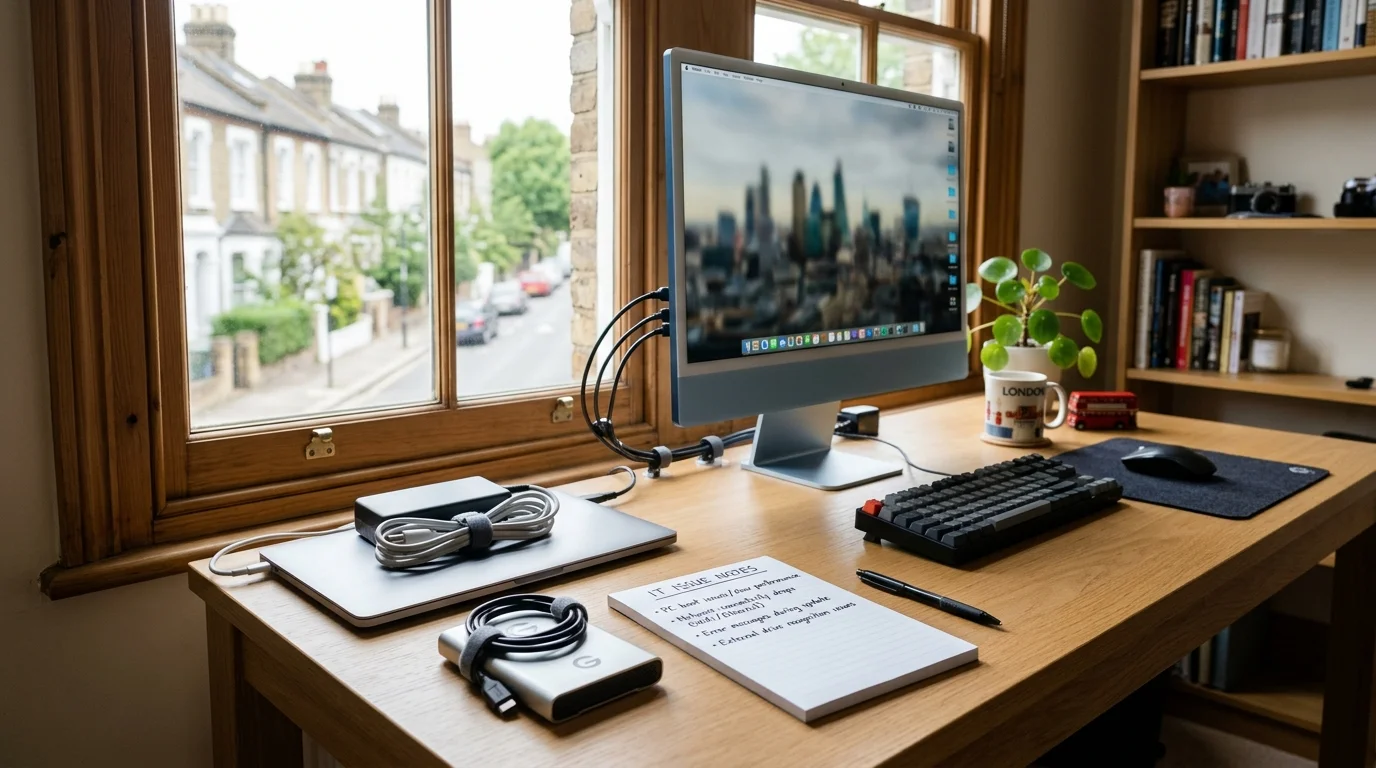
Knowing how to prepare computer before repair visit saves valuable time and ensures rapid diagnostics. When you prepare computer before repair visit properly, your personal data stays safe.
Booking an on-site computer repair visit across London saves you the hassle of unplugging tangled cables, carrying heavy desktop towers on the tube, or waiting weeks for postal repair centres. However, spending just 10 minutes preparing your computer and workspace before your engineer arrives can dramatically speed up diagnosis, reduce labour costs. Additionally, guarantee your private files remain secure.
At Computer Repair IT, our mobile technicians visit homes and workplaces across all Greater London boroughs. To help you get the most out of your diagnostic appointment, we have assembled this practical, security-first preparation guide covering data safety, workspace setup, password management. Additionally, peripheral checklists.
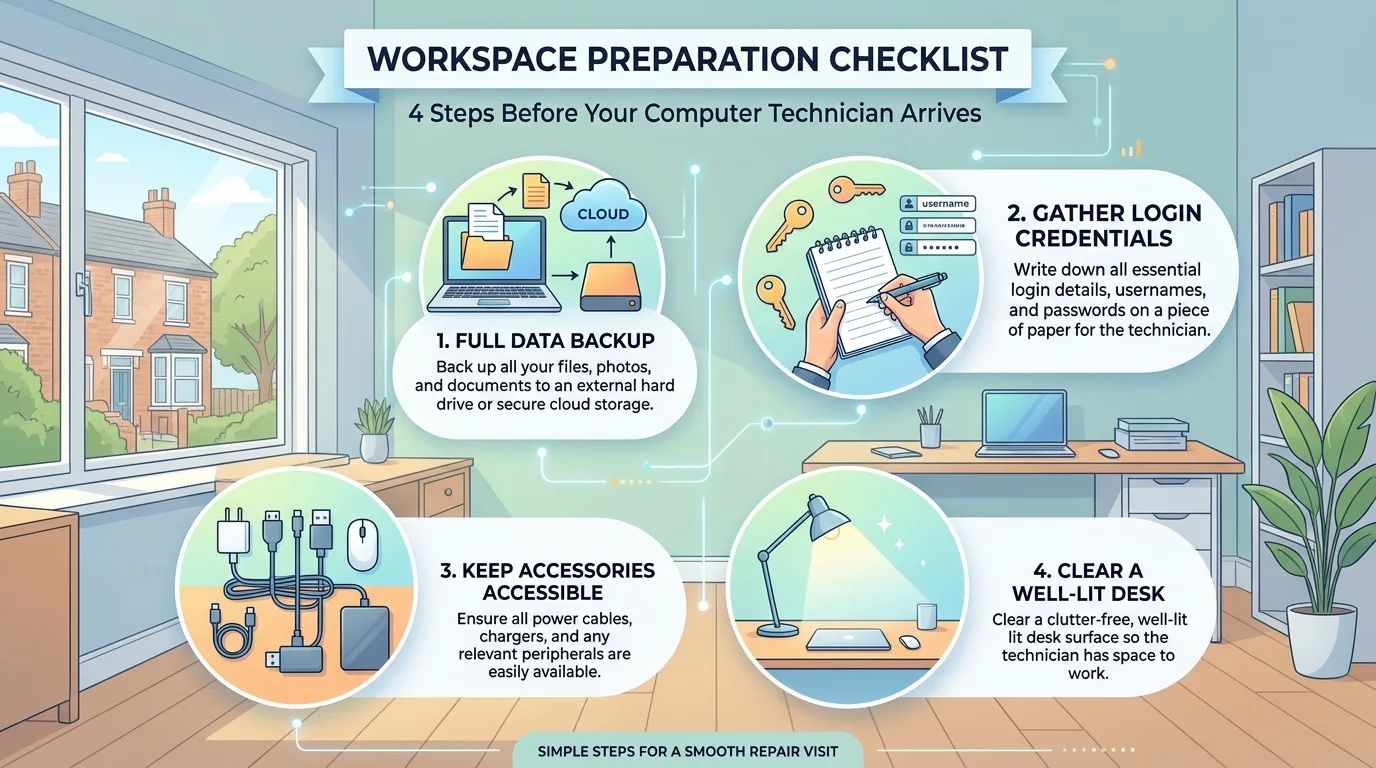
How to Prepare Computer Before Repair Visit: 4 Essential Steps
| Preparation Step | Why It Matters | What to Prepare |
|---|---|---|
| 1. Back Up Essential Files | Protects critical documents, family photos, and accounting ledgers before any hardware or OS testing begins. | External USB hard drive, cloud backup (OneDrive, Google Drive, iCloud), or USB thumb drive. |
| 2. Document Exact Symptoms | Intermittent faults (freezes that occur once every few hours) are difficult to reproduce on a short visit without precise context. | Smartphone photos of error screens (BSOD codes), written notes on when the issue began and recent changes. |
| 3. Gather Cables & Peripherals | Faulty external power bricks, docking stations, or third-party adapters are often the true cause of startup issues. | Original laptop AC adapter, monitor power leads, docking station, external keyboard/mouse. |
| 4. Prepare Device Access Credentials | Technicians need to log into the operating system to test drivers, Wi-Fi, and software services. | Local Windows PIN or Mac user password. (Never share banking or financial passwords!). |
| 5. Set Up Clean, Well-Lit Space | Opening laptops and desktop cases requires a clean surface free from clutter, dust, and liquids. | Cleared dining table or office desk near a power socket, with good natural or overhead lighting. |
Data Privacy & Security: What a Reputable Technician Will Never Ask For
Customer data security is our highest priority. Understanding the boundary between necessary technical access and private personal information protects you from malpractice:
- What We Need: Your standard computer login credentials (your local Windows password, PIN, or macOS user password) so we can boot the operating system, inspect event logs, and verify repair success under actual working conditions.
- What We Will NEVER Ask For: A reputable technician will never request your online banking passwords, email account passwords, credit card numbers, or passwords to personal cloud accounts. If a technician asks for your personal financial or email passwords, refuse immediately.
- Protecting Sensitive Documents: If you store confidential client contracts, medical records, or tax returns on your desktop, feel free to move them into a password-protected zip archive or transfer them to a temporary external flash drive before the appointment.
Privacy Tip: You are always welcome to sit beside our technician during the entire diagnostic visit. Professional engineers operate transparently, explaining what they are testing and why each step is necessary.
Preparing Hardware for Specific Faults
For Laptop Issues (Screens, Batteries, Overheating, Keyboard)
Ensure your laptop\'s original power adapter (charger) is available. Many battery charging faults are caused by damaged DC barrel jacks or frayed adapter cables rather than internal motherboard issues. If you use an external USB-C docking station or multiport hub, have it ready on the desk.
For Desktop PC Issues (Boot Failures, Blue Screens, No Display)
If your desktop tower will not power on or displays a black screen, ensure your monitor, video cable (HDMI or DisplayPort). Additionally, monitor power lead are set up alongside the tower. Many "PC won't display" callouts turn out to be damaged monitor cables or failing external displays rather than faulty PC graphics cards.
For Network & Printer Faults
If you booked a visit for printer offline problems or broadband dropouts, locate your Wi-Fi network name (SSID) and wireless password beforehand. If your broadband router is in an unusual location (under stairs or inside a cupboard), ensure the technician can access it to check ethernet ports and firmware status.
Book Your Professional London IT Visit
Taking a few moments to prepare ensures your diagnostic appointment runs efficiently, accurately. Additionally, safely. Whether you need a hardware repair, performance upgrade, or virus removal, our certified mobile engineers carry diagnostic instruments, modular parts. Additionally, antistatic gear directly to your door across London.
Discover our on-site home computer support or book a technician callout online today.
For users troubleshooting prepare computer before repair visit, for users troubleshooting prepare computer before repair visit, for users troubleshooting prepare computer before repair visit, for users troubleshooting prepare computer before repair visit, when addressing prepare computer before repair visit, for independent digital security advice, review the UK National Cyber Security Centre (NCSC) personal data guidance.
Frequently Asked Questions
Common questions London computer users ask about this specific technical problem.
Do I need to give the technician my personal passwords?
What if my computer will not turn on at all?
Should I back up my files before the technician arrives?
Does the technician need internet access during the repair?
Need Professional On-Site Repair in London?
If following these DIY troubleshooting steps has not solved the fault, our certified technicians carry modular parts, power testing tools, and boot diagnostic equipment to repair your system at your home or workplace across Greater London.