What to Check When Your Printer Shows "Offline" in Windows
Wireless printers dropping offline in Windows is one of the most common and exasperating technical headaches for London home workers and offices. Learn how to verify IP address assignments, clear stuck print queues, reset the Windows Print Spooler service, and prevent future offline dropouts.
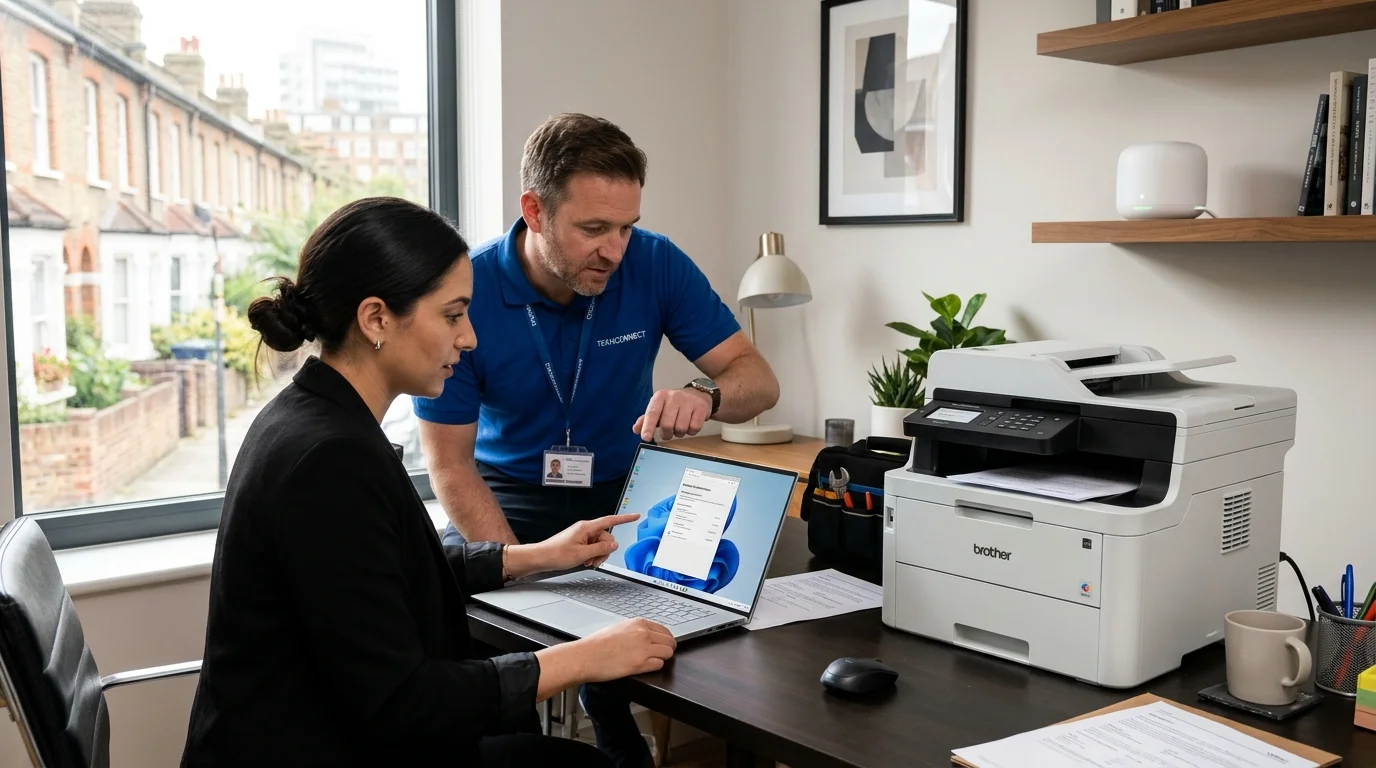
Few workplace annoyances match the moment your printer shows offline just before a meeting. When your printer shows offline in Windows, the issue is usually a network glitch or a paused spooler service.
You need to print an urgent flight ticket, legal document, or invoice. However, when you click Print, Windows calmly informs you that your printer is "Offline"—even though the printer is sitting three feet away with its power light brightly illuminated.
Printer communication dropouts are among the most frequent support tickets received by our London IT support team. HP, Canon, Epson. Additionally, Brother printers all share common network and operating system dependencies. In this troubleshooting guide, we walk you through the practical, reliable steps to reconnect your printer, clear corrupted print queues. Additionally, prevent Windows from dropping the connection in the future.
Step-by-Step Fixes When Your Printer Shows Offline in Windows
Windows marks a printer as "Offline" when two-way communication between the operating system's print architecture and the physical device fails. Contrary to appearances, the hardware is rarely broken. The disconnect almost always occurs in one of three areas:
| Problem Category | Underlying Technical Cause | Typical Environmental Factor |
|---|---|---|
| Dynamic IP Address Reassignment | Your home or office Wi-Fi router rebooted and assigned the printer a new local IP address via DHCP, but Windows is still attempting to send print jobs to the old IP. | Dual-band routers (2.4GHz vs 5GHz), mesh Wi-Fi pods, power cuts. |
| Corrupted Windows Print Spooler | A damaged document or unsupported PDF font crashed the spoolsv.exe Windows background service, locking all queued print jobs in memory. |
Large PDF documents, interrupted network print requests. |
| WSD Port Protocol Dropouts | Windows 10 and 11 defaulted to using a "Web Services for Devices" (WSD) port rather than a dedicated Standard TCP/IP port. WSD frequently enters dormant power states. | Energy-saving sleep modes on modern laser and inkjet units. |
| Windows "Use Printer Offline" Setting | A brief Wi-Fi hiccup prompted Windows to toggle the manual "Use Printer Offline" driver flag, which remains stuck on even after the network recovers. | Momentary broadband disconnects, laptop moving between rooms. |
Step 1: Check Physical Status & Simple Connectivity
Always verify the physical hardware state before diving into software configuration:
- Power Cycle Both Devices Methodically: Turn off your printer using its physical power button. Unplug the mains power cord from the wall for 60 seconds (this fully clears volatile memory on the printer's network card). Restart your Windows computer. Reconnect the printer power cord and power it on.
- Verify Wi-Fi Signal on the Printer Display: Look at your printer's control panel. Is the wireless icon solid, or is it flashing? A flashing Wi-Fi LED indicates the printer has lost its connection to your router entirely (often caused by changed Wi-Fi passwords or router updates).
- Ensure Dual-Band Compatibility: Most home printers only support 2.4 GHz Wi-Fi networks. If you recently installed a modern mesh Wi-Fi system in London (such as Virgin Media Hub 5, BT Smart Hub 2, or Sky Max) that merges 2.4 GHz and 5 GHz bands under one SSID, your printer may struggle to bind.
Step 2: Uncheck the "Use Printer Offline" Flag in Windows
Windows includes a manual driver toggle that can get stuck in offline mode:
- Press Windows Key + R, type
control printers, and press Enter to open classic Devices and Printers. - Right-click your printer and select See what's printing.
- In the print queue window that opens, click the top Printer menu.
- Look at the item labelled Use Printer Offline. If it has a checkmark next to it, click it to uncheck it.
- Also ensure Pause Printing is unchecked.
Step 3: Restart the Windows Print Spooler Service & Clear Stuck Jobs
A single corrupted print document will block all subsequent print jobs, causing Windows to believe the printer is unresponsive:
- Press Windows Key + R, type
services.msc, and hit Enter. - Scroll down through the alphabetized list until you find Print Spooler.
- Right-click Print Spooler and select Stop. Leave the Services window open.
- Press Windows Key + R again, paste this path, and click OK:
C:\Windows\System32\spool\PRINTERS - If prompted for administrator permission, click Continue. Delete all files inside this folder (these are the temporary spool files causing the jam).
- Return to the Services window, right-click Print Spooler, and select Start.
Step 4: Fix WSD Dropouts by Switching to a Standard TCP/IP Port
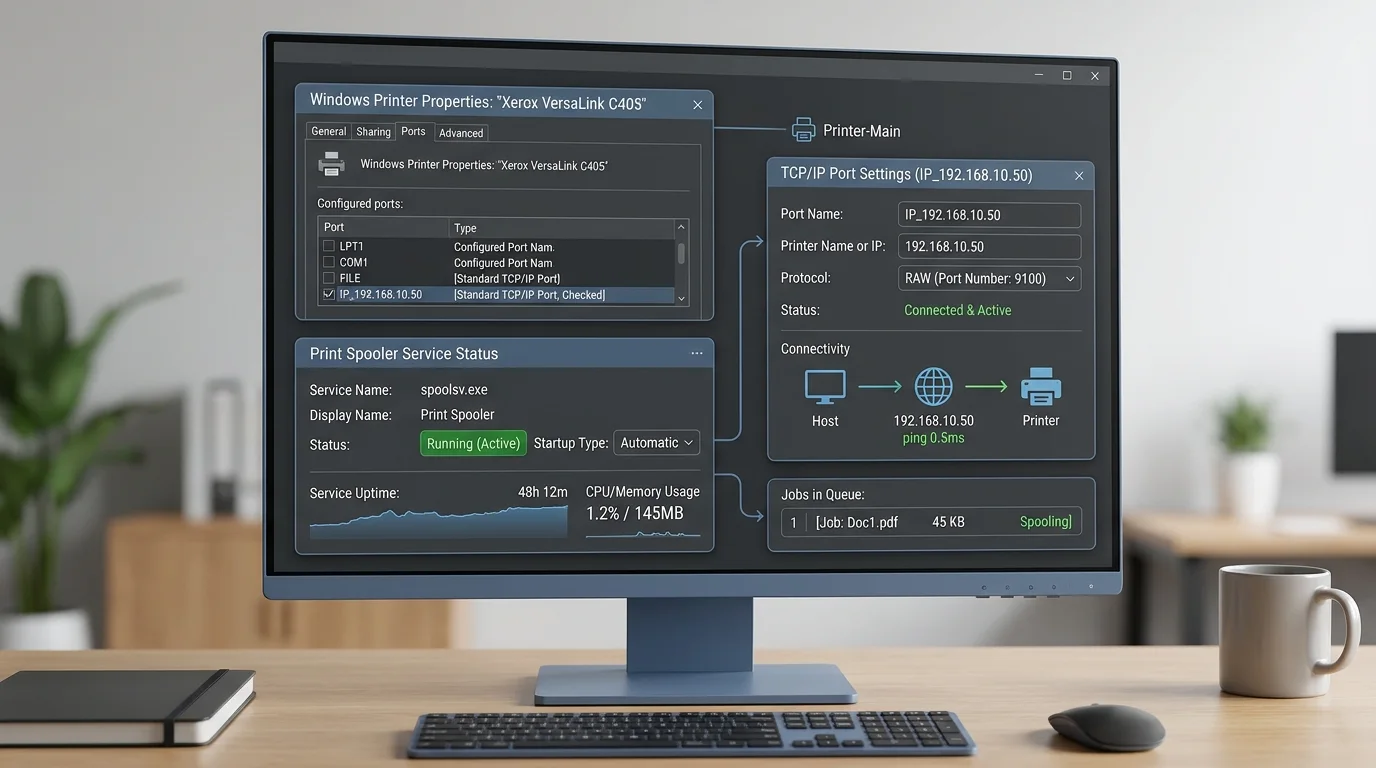
The most robust, permanent fix for wireless printer dropouts is switching the printer port from Windows WSD to a permanent Standard TCP/IP port:
- Print a Network Configuration Report directly from your printer's settings menu (or check your router's admin portal) to locate the printer's current IP address (e.g.,
192.168.1.145). - Open control printers, right-click your printer, and select Printer Properties.
- Navigate to the Ports tab. Notice which box is checked. If it begins with
WSD-, this is the root cause of your intermittent offline status. - Click Add Port... > Standard TCP/IP Port > New Port.
- Enter your printer's IP address in the wizard, complete the prompt, and click Apply.
By assigning a direct TCP/IP port, Windows connects to your printer using standard network sockets, bypassing Microsoft's WSD sleep-state bugs entirely.
When to Request On-Site Home or Office Printer Support
If your printer continues to drop offline after configuring a TCP/IP port, or if you manage a busy London office with multiple workstations printing across different network subnets, the issue may involve DHCP lease expirations, firewall port restrictions, or corrupted print drivers.
Our mobile engineers provide professional home computer support and business IT assistance across London. We configure static IP reservations on your router, install clean manufacturer driver packages. Additionally, ensure every desktop, laptop. Additionally, mobile device prints reliably. Contact our technical support desk or schedule an on-site visit today.
For users troubleshooting printer shows offline, for users troubleshooting printer shows offline, for users troubleshooting printer shows offline, for users troubleshooting printer shows offline, for users troubleshooting printer shows offline, when addressing printer shows offline, for additional manufacturer network troubleshooting, review the official Microsoft printer offline troubleshooting guide.
Frequently Asked Questions
Common questions London computer users ask about this specific technical problem.