Critical Steps to Take Before Seeking Professional Data Recovery
Sudden data loss on a clicking hard drive, unrecognized SSD, or water-damaged laptop triggers immediate panic. What you do in the first ten minutes determines whether your files can be recovered or are permanently destroyed. Follow this emergency triage protocol.
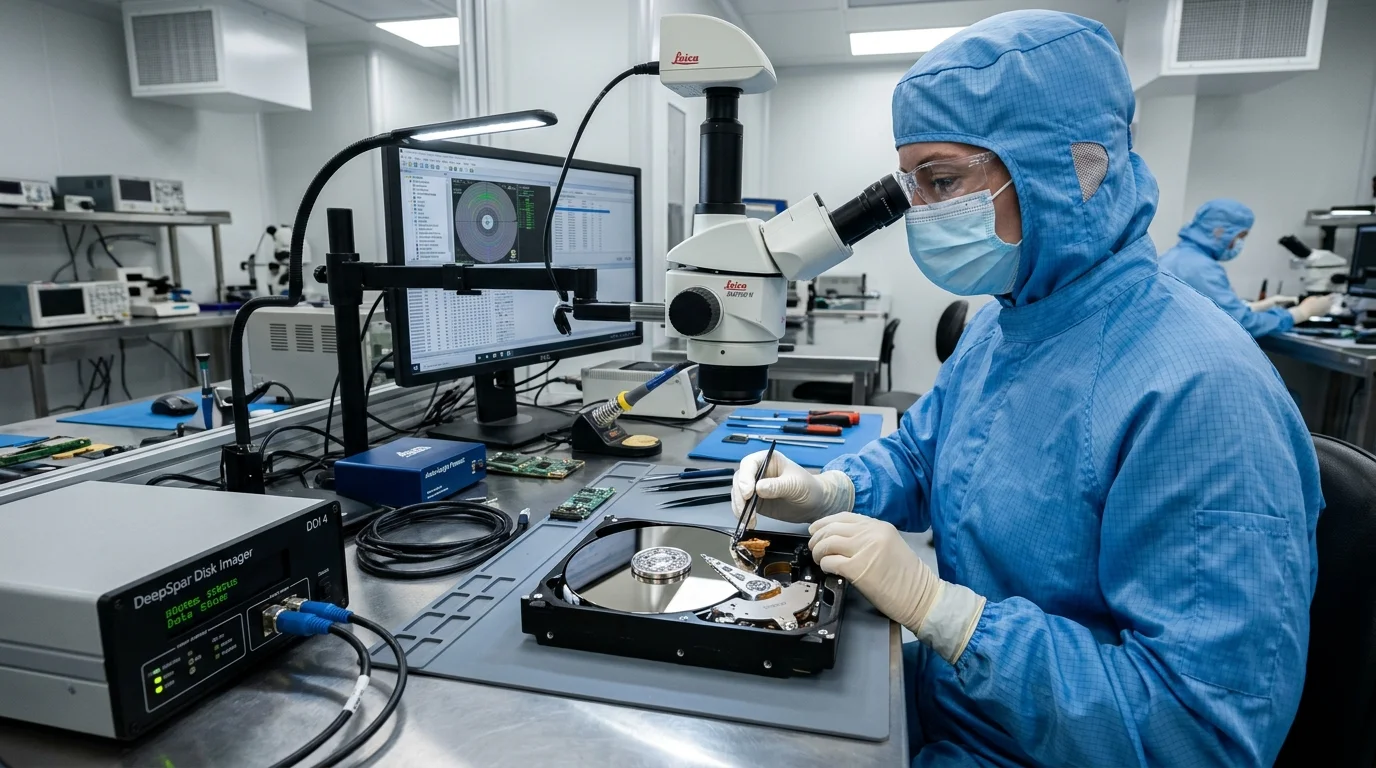
Experiencing storage failure is stressful. However, knowing what to do before seeking data recovery can make the difference between recovery and permanent loss. The precautions you take before seeking data recovery protect delicate sectors.
Discovering that your hard drive is making repetitive clicking sounds, your USB backup drive is unreadable, or your laptop SSD has vanished from Windows triggers immediate panic. Years of irreplaceable family photographs, critical accounting databases, or university dissertations seem to disappear in an instant.
When data loss strikes, human instinct is to frantically plug the drive into different computers, download free software recovery utilities, or repeatedly restart the system hoping it will suddenly work. Unfortunately, these well-intentioned DIY attempts are the single leading cause of permanent, irreversible data destruction.
At Computer Repair IT, our London data recovery laboratory recovers data from severely degraded mechanical hard disk drives (HDDs), solid-state drives (SSDs), NVMe cards. Additionally, external storage units. In this emergency guide, we outline the vital protocol you must follow immediately to preserve your data and maximize the probability of a 100% successful recovery.
Critical Precautions Before Seeking Data Recovery
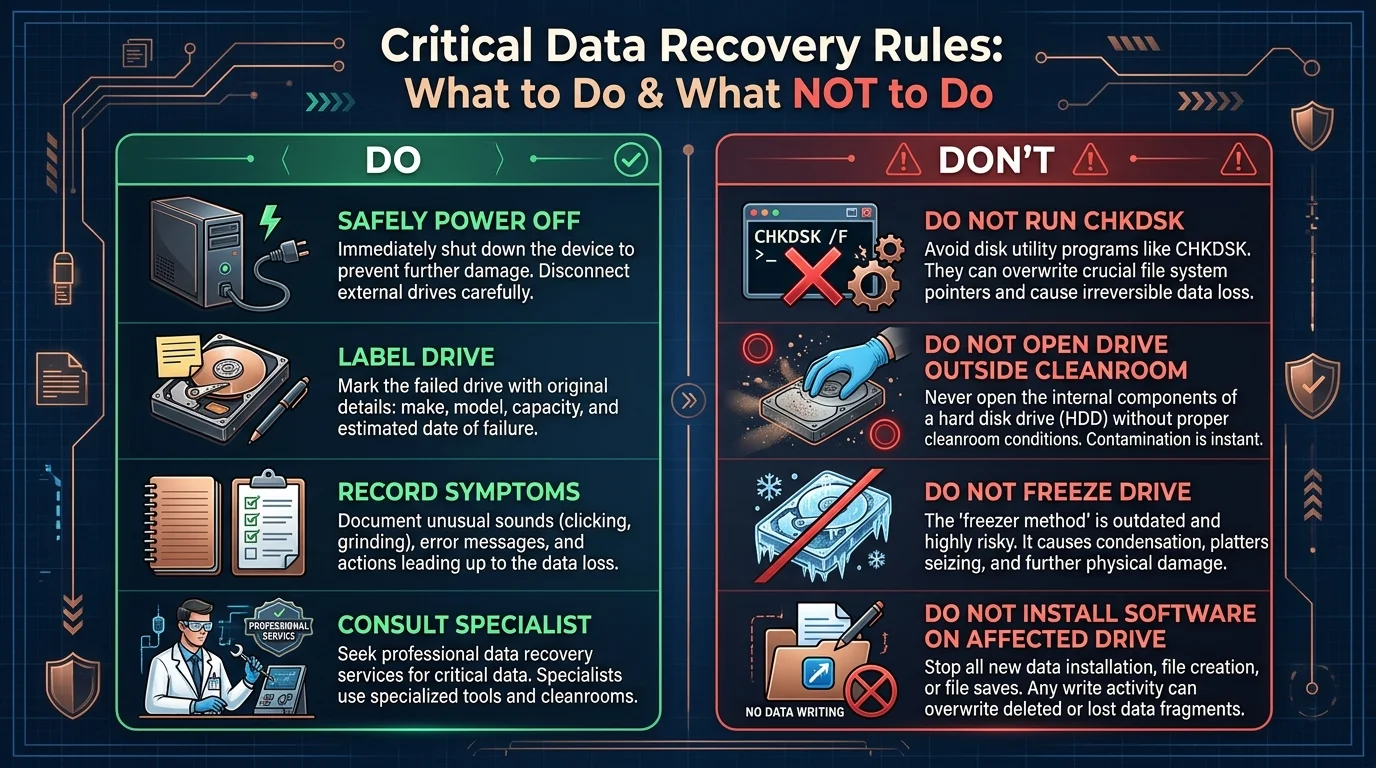
- NEVER Keep Powering On a Clicking or Grinding Drive: Rhythmic clicking, scraping, or buzzing sounds indicate a mechanical read/write head assembly failure. When damaged heads hover microscopic nanometres above magnetic platters spinning at 5,400 to 7,200 RPM, they physically gouge circular rings into the magnetic recording layer, turning your data into microscopic dust.
- DO NOT Run Windows CHKDSK or Disk Utility: When Windows detects a corrupted drive, it frequently prompts: "Do you want to scan and fix removable disk?". CHKDSK is designed to force the file system into a consistent state—it does not care about preserving your files. It will aggressively overwrite corrupted index pointers, truncate files, and destroy fragmented data beyond recovery.
- NEVER Install Recovery Software on the Affected Drive: Downloading recovery software onto the exact drive you are trying to recover writes hundreds of megabytes of new data across the storage sectors, directly overwriting the very deleted files you need to rescue.
- DO NOT Put Hard Drives in the Freezer: The infamous "freezer trick" originated decades ago for older mechanical drives with stuck spindle bearings. On modern high-density hard drives, freezing causes ambient moisture to condense into water droplets directly on the mirror-finish platters when removed, causing catastrophic head crashes upon spinning.
- NEVER Open a Hard Drive Outside a Certified Cleanroom: Hard drive covers must never be unscrewed in a home or office environment. A single airborne dust particle is significantly larger than the gap between a modern read/write head and the platter surface. Opening a drive in ordinary air contaminates the platters instantly.
Emergency Triage Protocol: What You MUST Do Right Now
| Storage Device State | Immediate Action | Why This Saves Your Data |
|---|---|---|
| Mechanical Drive Clicking / Beeping | Immediately shut down the computer or disconnect the external USB cable. Do NOT attempt to turn it on again. | Prevents physical platter gouging and preserves the magnetic substrate for cleanroom head-replacement surgery. |
| SSD / NVMe Unrecognized / RAW | Power off the system. Disconnect the drive. Avoid leaving the system powered on. | Modern SSDs run background TRIM garbage collection algorithms. Leaving an SSD powered on can cause the controller to zero out deleted sectors automatically. |
| Liquid Damaged Laptop / Drive | Disconnect the battery immediately. Do not charge. Do not attempt to turn on. Do not place in rice. | Rice does not stop internal corrosion and deposits fine starch dust into ports. Professional ultrasonic cleaning is required. |
| Accidental Deletion / Formatted Drive | Stop using the computer immediately. Do not browse the web, download files, or shut down normally (perform a hard power cut). | Operating systems continuously write background logs and cache files that overwrite unallocated space containing your deleted data. |
Understanding the Professional Data Recovery Process
When you entrust your storage drive to a professional laboratory, the recovery procedure follows rigorous forensic engineering protocols:
1. Non-Destructive Hardware Evaluation
The drive is inspected under an optical stereo microscope to check for PCB corrosion, blown diodes. Additionally, head assembly alignment. If the drive is mechanically sound, it is connected to a dedicated hardware write-blocker (such as DeepSpar Disk Imager) that prevents the operating system from sending write commands.
2. Cleanroom Class 100 / ISO 5 Component Replacement
If mechanical heads or spindle motors have failed, the drive is taken into a certified laminar-flow cleanroom bench. Identical donor parts matched by microcode and firmware revision are installed using precision surgical alignment tools.
3. Sector-by-Sector Forensic Bit-Stream Imaging
Recovery engineers never perform analysis on the original damaged drive. Instead, specialised imaging hardware reads the drive at low speeds, bypassing weak and bad sectors, adjusting read head voltages. Additionally, compiling a raw sector-by-sector clone onto enterprise laboratory storage.
4. File System Reconstruction and Integrity Verification
Using the forensic clone, engineers reconstruct Master File Tables (MFT), directory trees. Additionally, raw file signatures. Recovered data is verified for file integrity and transferred to a secure, encrypted transfer drive for return to the customer.
Get Professional London Data Recovery Support
If you are facing critical data loss in London, every minute of improper handling matters. Computer Repair IT provides secure, confidential data recovery diagnostics across Greater London with transparent evaluations.
Learn more about our cleanroom data recovery services in London or contact our emergency data recovery desk immediately for advice before taking any risky actions.
For users troubleshooting before seeking data recovery, for users troubleshooting before seeking data recovery, for users troubleshooting before seeking data recovery, for users troubleshooting before seeking data recovery, for users troubleshooting before seeking data recovery, when addressing before seeking data recovery, for cleanroom environment specifications and digital forensics standards, consult ISO international standards on information technology data storage.
Frequently Asked Questions
Common questions London computer users ask about this specific technical problem.