Why Is My Laptop Running Slowly? 6 Common Causes & How to Fix It
Laptops rarely slow down overnight without a specific technical reason. From mechanical hard drive wear and background startup bloat to dried thermal compound causing processor throttling, discover the 6 primary bottlenecks holding back your laptop's speed.
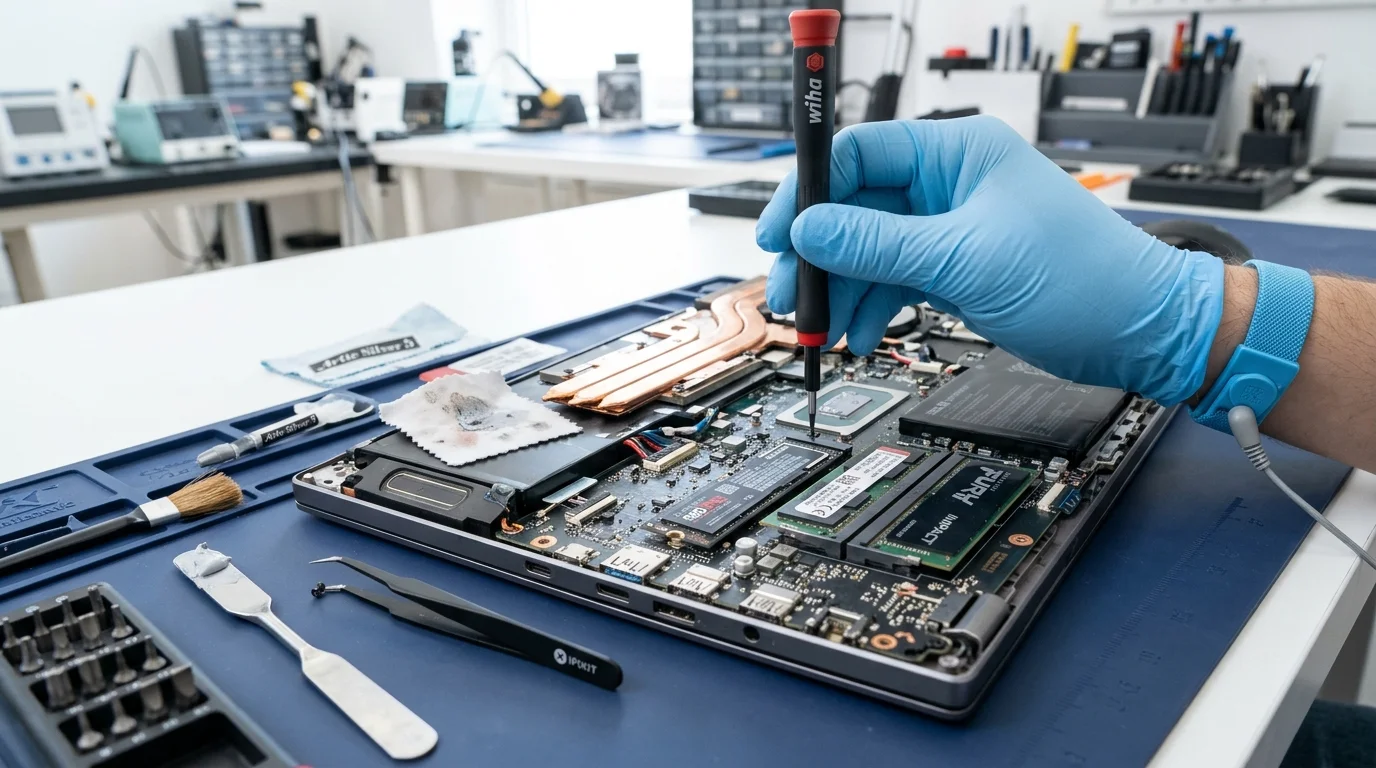
If you find yourself asking why is my laptop running slowly, you are not alone. A sluggish machine slows down your work. However, understanding why is my laptop running slowly helps you choose the right repair.
A laptop that used to open applications instantly, stream videos effortlessly. Additionally, boot in seconds can gradually slow down to a crawl. Applications freeze, the mouse cursor stutters, browser tabs take ages to switch. Additionally, cooling fans blast at maximum volume even when you are only typing an email.
When London computer users ask our technicians "Why is my laptop running so slowly?", they often suspect their machine is simply "too old" or that modern software has permanently outpaced their hardware. In reality, laptops rarely slow down without a specific, diagnosable bottleneck. By systematically identifying whether your bottleneck is mechanical, thermal, software-based, or memory-constrained, you can often restore your machine to faster-than-new performance for a fraction of the cost of buying a replacement.
Primary Reasons Why Is My Laptop Running Slowly in Daily Use
| Performance Bottleneck | How It Slows Your Laptop | Typical Warning Signs | Recommended Solution |
|---|---|---|---|
| Mechanical HDD Bottleneck | Older spinning hard drives read data at 80–140 MB/s, creating 100% disk usage spikes in Windows 10 & 11. | Startup takes over 2 minutes; clicking drive sounds; Task Manager shows constant 100% disk activity. | Upgrade to a modern SATA or NVMe Solid State Drive (SSD) with full system cloning. |
| Thermal Throttling | Dust accumulation in heatsink fins and dried thermal paste cause the CPU to cut its clock speed by 60% to prevent burnout. | Laptops runs hot underneath; fans whir loudly; performance drops drastically after 10 minutes of use. | Internal fan cleaning and application of high-conductivity thermal compound. |
| Startup Bloat & Background Tasks | Applications (Spotify, Adobe, Teams, cloud sync tools) quietly launch on boot and consume RAM and CPU cycles. | High memory usage immediately after boot; sluggish desktop responsiveness; multiple tray icons. | Audit Task Manager Startup tab; disable non-essential helpers and auto-launchers. |
| Insufficient Memory (RAM) | Running modern web browsers (Chrome, Edge) with 8GB or less forces Windows to swap memory to a slow virtual pagefile. | System freezes during multitasking; browser tabs reload automatically when switched to. | Upgrade memory to 16GB or 32GB dual-channel DDR4/DDR5 RAM. |
| Malware & Cryptominers | Rogue extensions, adware, and hidden background miners quietly consume processor cores and bandwidth. | Laptop stays warm while idle; unexpected search redirects; battery life drops by half. | Perform targeted malware decontamination and removal of malicious browser extensions. |
| Windows System File Fragmentation | Interrupted cumulative updates, orphaned registry handles, and corrupted component stores create I/O lag. | Windows updates repeatedly fail; file explorer hangs on folder access; frequent BSOD errors. | Execute DISM and SFC health repairs; clean out temporary update caches. |
Step 1: Diagnose Real Bottlenecks Using Windows Task Manager
Before altering settings or purchasing upgrades, identify which specific hardware resource is saturating:
- Press Ctrl + Shift + Esc to open Windows Task Manager.
- Click More details if Task Manager opens in compact view, then select the Performance tab.
- Examine Disk Usage: If your disk activity remains pegged at 95% to 100% even while you are not opening applications, your storage drive is the primary bottleneck. If your storage drive is a mechanical hard drive (HDD), Windows 10 and 11 telemetry and indexing will continually saturate its read-write queues.
- Examine Memory Usage: If memory usage is consistently above 85%, your laptop has exhausted its physical RAM and is thrashing data to the virtual pagefile on disk, resulting in severe interface stutter.
- Examine CPU Speed (Thermal Throttling): Look at the Speed metric under CPU. If your processor base speed is 2.40 GHz but your CPU is locked at 0.79 GHz or 0.99 GHz despite having open applications, your machine is heavily thermal throttling due to internal heat buildup.
Step 2: Eliminate Startup Programs and Background Bloat
Many applications silently configure themselves to run automatically every time your laptop powers on:
- In Task Manager, navigate to the Startup apps tab.
- Sort the list by Startup impact (High, Medium, Low).
- Right-click and Disable software you do not need running immediately upon boot (such as game launchers, cloud storage secondary tools, media players, and chat assistants). Disabling them does not uninstall them; it simply stops them from starting until you open them deliberately.
- Open Settings > Apps > Installed Apps and uninstall trial software, unused third-party antivirus suites, and duplicate PDF readers.
Step 3: Clean Out Accumulated Dust and Refresh Thermal Paste
Laptops draw air from underneath the chassis to cool microscopic processor dies. Over 18 to 24 months of use in London homes and offices, cooling fans pull in fine dust, textile fibres. Additionally, pet hair, forming a felt-like mat across the copper heatsink exhaust vents.
Simultaneously, the factory thermal paste between the CPU die and copper heat pipe dries out, losing its heat-transfer efficiency. When CPU temperatures surpass 95°C, the processor automatically reduces its clock speed to prevent permanent silicon damage. A physical service—cleaning the fan assemblies and applying premium non-conductive thermal compound—regularly reduces operating temperatures by 20°C to 30°C and restores full clock speeds.
Technician Tip: Avoid spraying compressed air directly into laptop exhaust vents from the outside without holding the fan blades steady. High-velocity air can over-spin miniature sleeve-bearing fans beyond their rated RPM and generate back-EMF voltage that can damage motherboard fan headers.
Step 4: The Ultimate Upgrade: Replacing Aging Drives with Fast SSDs
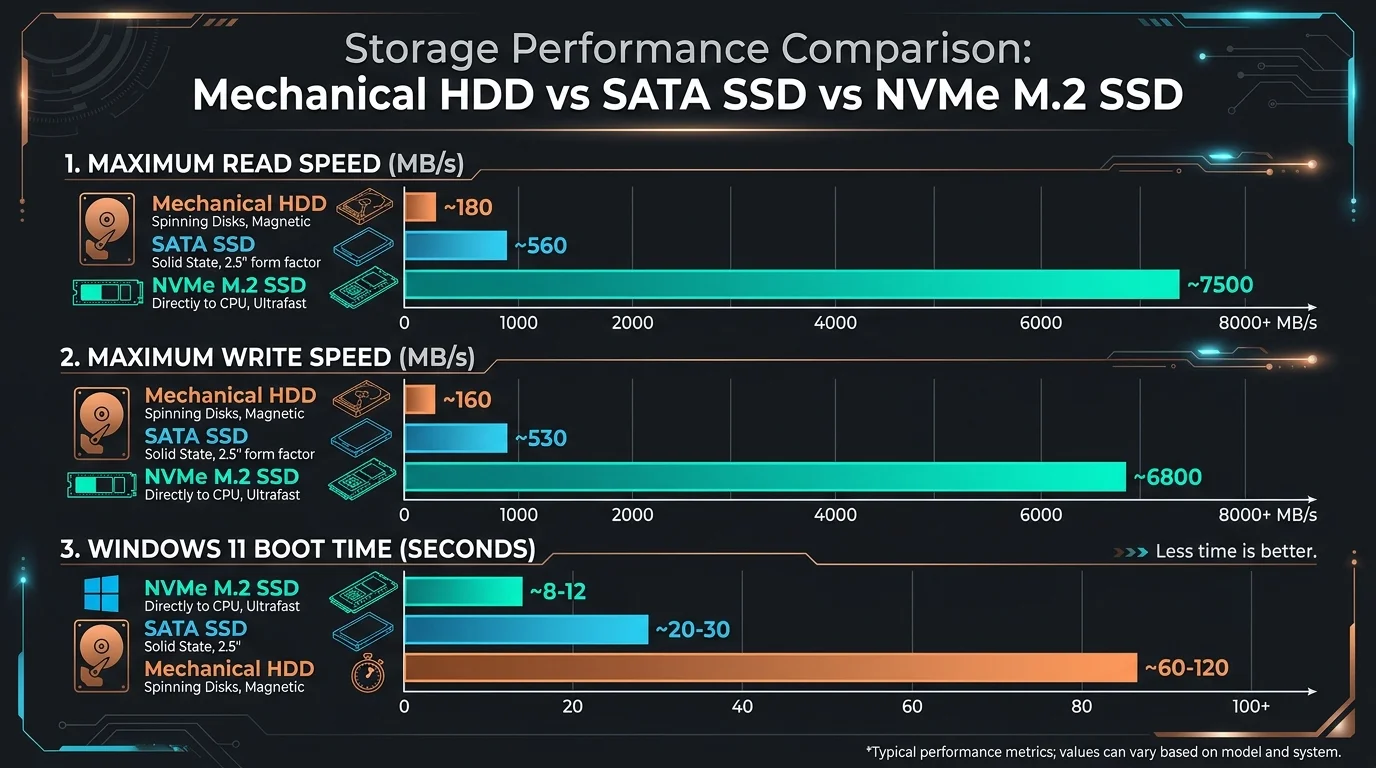
If your laptop still runs on an older mechanical hard drive, no amount of disk cleanup or registry tweaking will match the transformative impact of upgrading to a Solid State Drive. As shown in our benchmark comparison, modern NVMe SSDs read data at upwards of 3,500 to 7,000 MB/s compared to 100 MB/s on mechanical drives.
At Computer Repair IT, our laptop repair technicians perform complete system clonings: we migrate your exact Windows installation, licensed applications, personal files, browser bookmarks. Additionally, settings directly onto a lightning-fast new SSD. Your laptop feels completely familiar. However, boots in under 12 seconds and responds instantly.
When to Consider Professional Laptop Servicing in London
If your laptop remains painfully slow after trimming startup programs, runs hot enough to be uncomfortable on your lap, or suffers from intermittent freezing, professional diagnostic testing is recommended. Our London engineers test memory modules for bit errors, scan storage sectors for reallocation markers, decontaminate stubborn rootkit malware. Additionally, perform professional hardware upgrades on-site.
Explore our comprehensive laptop repair services or book a London technician callout to restore your laptop's performance today.
For users troubleshooting why is my laptop running slowly, for users troubleshooting why is my laptop running slowly, for users troubleshooting why is my laptop running slowly, for users troubleshooting why is my laptop running slowly, for users troubleshooting why is my laptop running slowly, when addressing why is my laptop running slowly, for operating system maintenance guidelines, consult the Microsoft Windows performance optimization guidelines.
Frequently Asked Questions
Common questions London computer users ask about this specific technical problem.