What to Do When a Windows PC Will Not Start (Safe Step-by-Step Guide)
Few situations are more frustrating than pressing your computer's power button and being greeted by silence, spinning fans with a black screen, or an endless Windows automatic repair loop. This methodical diagnostic guide walks you through safe, professional checks to isolate hardware faults from software corruption.
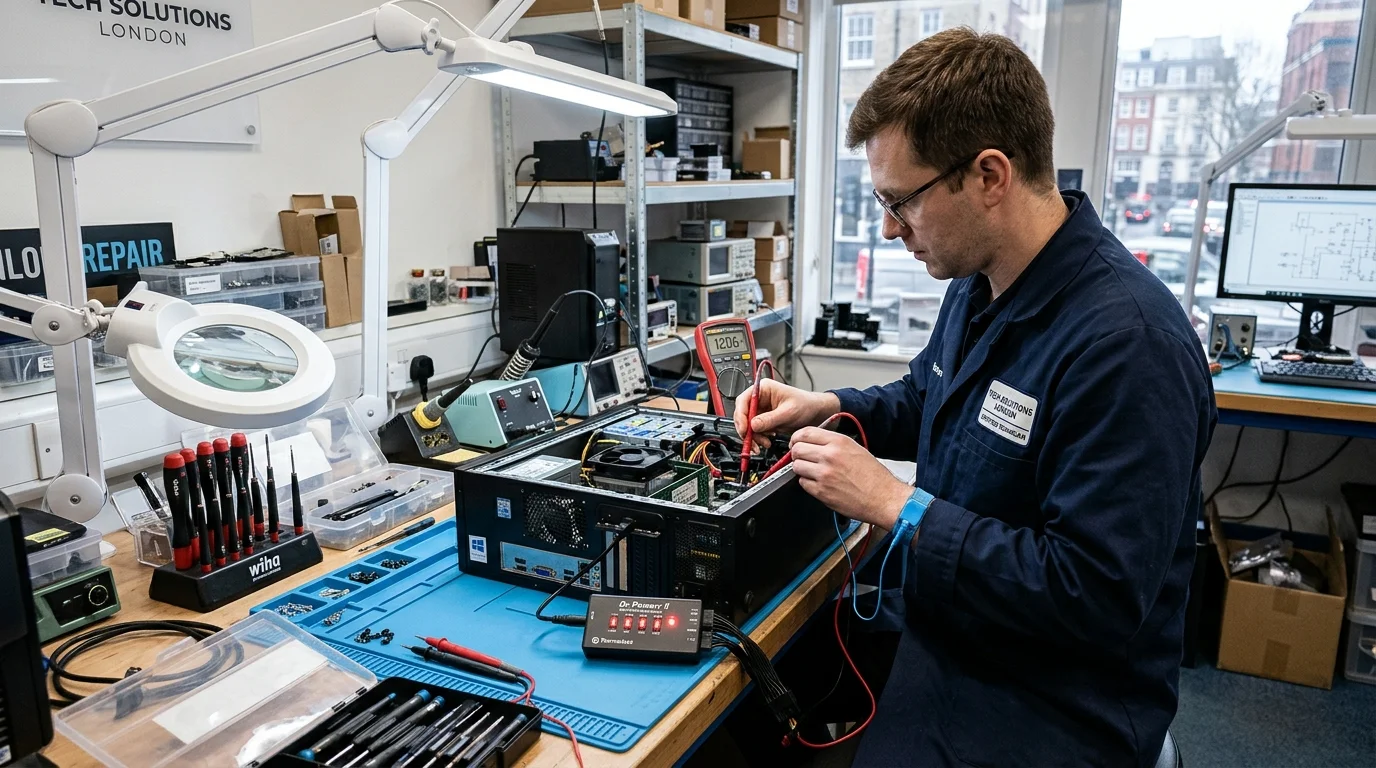
If your Windows PC will not start, knowing the right diagnostic checks prevents costly mistakes. When a Windows PC will not start, the issue usually stems from power delivery, display signals, or memory seating.
If your Windows PC will not start, knowing the right diagnostic checks prevents costly mistakes. When a Windows PC will not start, the issue usually stems from power delivery, display signals, or memory seating.
If your Windows PC will not start, knowing the right diagnostic checks prevents costly mistakes. When a Windows PC will not start, the issue usually stems from power delivery, display signals, or memory seating.
If your Windows PC will not start, knowing the right diagnostic checks prevents costly mistakes. When a Windows PC will not start, the issue usually stems from power delivery, display signals, or memory seating.
If your Windows PC will not start, knowing the right diagnostic checks prevents costly mistakes. When a Windows PC will not start, the issue usually stems from power delivery, display signals, or memory seating.
If your Windows PC will not start, knowing the right diagnostic checks prevents costly mistakes. When a Windows PC will not start, the issue usually stems from power delivery, display signals, or memory seating.
Few technical emergencies disrupt a London working day faster than a desktop PC or workstation that refuses to start. Whether you press the power button and nothing happens at all, or the cooling fans roar to life while your display remains blank, jumping straight to conclusions often leads to wasted expense on unnecessary parts.
At Computer Repair IT, our mobile technicians diagnose hundreds of non-starting desktop computers across Greater London every year. In the majority of callouts, startup failures stem from one of four root causes: power delivery faults, peripheral electrical shorts, seated memory (RAM) communication errors, or corrupted Windows bootloader records. This step-by-step troubleshooting guide provides safe, methodical instructions to help you determine exactly why your computer will not start and decide whether a DIY fix or a professional on-site repair visit is appropriate.
Troubleshooting Checks When Your Windows PC Will Not Start
Before touching any cables or opening the computer case, observe the exact symptoms exhibited by the machine when you press the power button. Troubleshooting a computer that receives no electrical current is fundamentally different from diagnosing one that powers on but cannot load Microsoft Windows.
| Diagnostic Stage | Observed Symptoms | Primary Culprit | Initial Action |
|---|---|---|---|
| No Power (Dead System) | Zero fan movement, no LEDs, no motherboard standby lights, silent unit. | Mains cable, surge protector, fused plug, ATX power supply unit (PSU). | Verify wall socket with lamp; test direct kettle lead; check PSU rear rocker switch. |
| No POST (Power but No Display) | Fans spin continuously, motherboard LEDs illuminate, but monitor shows "No Signal". | RAM contact oxidation, discrete graphics card (GPU) seating, CMOS battery. | Isolate peripherals; reseat RAM sticks one at a time; clear CMOS RTC jumper. |
| POST Boot Loop | System powers on for 3 to 10 seconds, shuts down abruptly, and restarts repeatedly. | CPU thermal shutdown, shorted USB port, corrupted BIOS UEFI firmware. | Unplug all external USB devices; inspect front USB pins for physical bridging. |
| No Boot (Windows Failure) | Manufacturer logo appears (Dell, HP, Lenovo, ASUS), followed by blue screen or "No Boot Device". | Corrupted BCD store, SSD/NVMe drive failure, boot order misconfiguration. | Access Windows Recovery Environment (WinRE); run Startup Repair; verify drive in BIOS. |
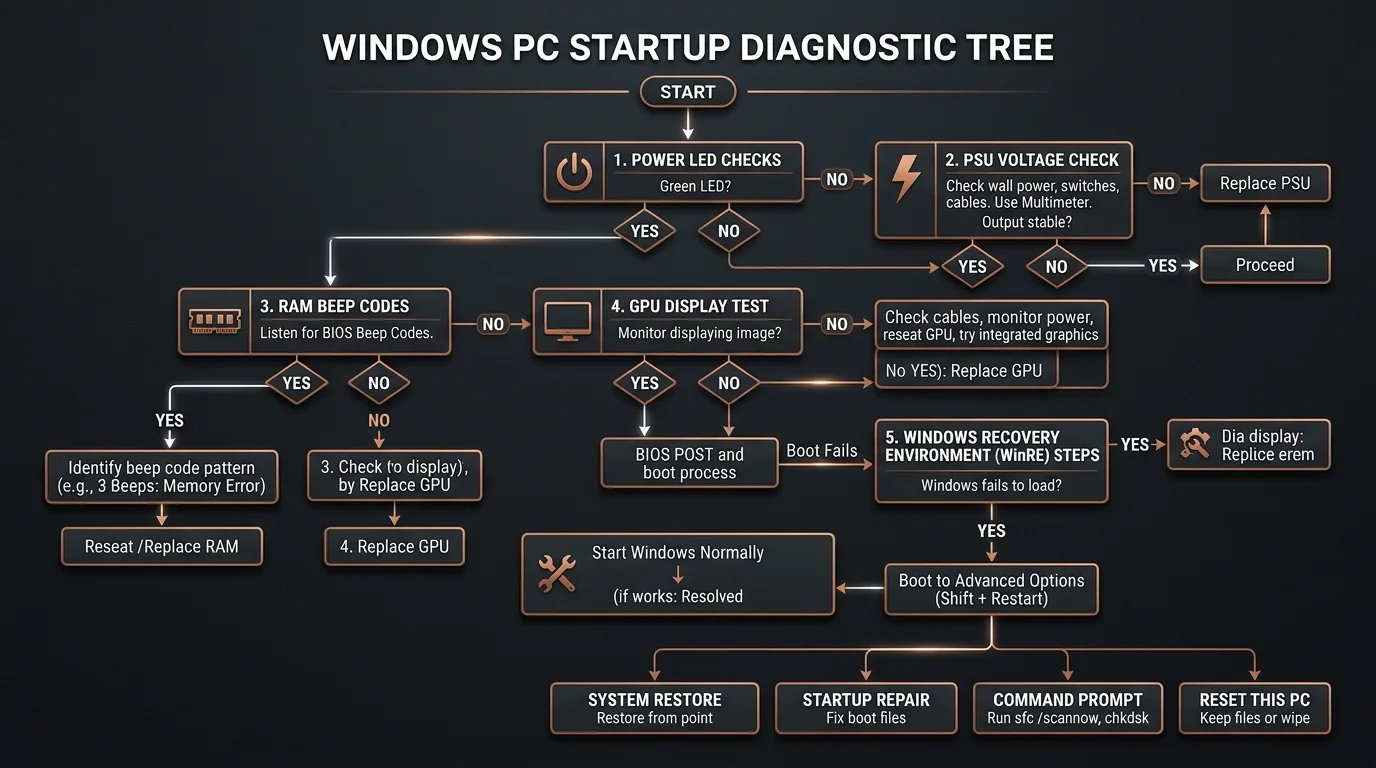
Phase 2: Resolving "No Power" Symptoms (Physical & Electrical Checks)
If your computer exhibits no signs of life, start with the most basic electrical components before assuming your motherboard or power supply has suffered a catastrophic failure:
- Test the Wall Outlet Directly: Plug a household lamp or smartphone charger into the exact wall socket your PC uses. In London period conversions and shared office spaces, blown ring mains or tripped RCD breakers are surprisingly common.
- Bypass Surge Protectors and Extension Leads: Extension multi-plugs can degrade over time or trip their internal overload fuses. Connect your computer's power cord directly to a known-working wall socket.
- Inspect the C13 "Kettle" Power Lead and UK Plug Fuse: UK standard plugs contain a 5A or 13A ceramic cartridge fuse (BS 1362). A blown plug fuse is one of the cheapest and most overlooked causes of a dead PC. Swap the kettle lead with a known-good spare from your monitor or printer to rule this out.
- Check the ATX Power Supply Rocker Switch: Ensure the rocker switch on the rear of the power supply unit is set to the "I" (ON) position rather than the "O" (OFF) position.
- Perform a Power Flea Drain: Switch off the wall socket, unplug the power cable from the back of the tower, and hold down the computer's front power button for 30 consecutive seconds. This discharges residual capacitance stored in the motherboard capacitors and resets latch-up protective states. Reconnect power and test.
Safety Warning: Never attempt to disassemble an internal ATX power supply unit. High-voltage capacitors inside a power supply can hold dangerous electrical charges for hours even when disconnected from the mains. If you suspect an internal PSU fault, have a certified PC repair specialist test it with an isolated digital voltage meter.
Phase 3: Diagnosing "Power On But No Display" (POST Failures)
If your computer powers on, illuminated fans spin. However, the screen stays entirely black or displays "No Signal", the machine is failing the Power-On Self-Test (POST). During POST, the motherboard firmware verifies that the central processor (CPU), system memory (RAM). Additionally, display adapter are operational before initializing boot drives.
1. Disconnect All External Peripherals
Faulty USB peripherals, damaged printer cables, or grounded external audio interfaces can cause a protective electrical short that prevents motherboards from completing POST. Disconnect everything from the back and front of the PC: unplug all webcams, printers, USB flash drives, external hard drives, card readers. Additionally, audio cables. Leave only the power cable, monitor lead. Additionally, basic USB keyboard connected.
2. Verify Display Input Source and Video Cabling
Ensure your monitor's display cable (HDMI or DisplayPort) is connected directly to the discrete graphics card ports (located horizontally lower down the rear panel) rather than the motherboard's integrated video outputs, unless your system uses an integrated CPU without a dedicated GPU. Confirm the monitor input selector is explicitly set to the active cable.
3. Reseat RAM Sticks Individually
Memory contact tarnishing or microscopic expansion due to thermal cycles is the single most frequent hardware cause of POST failures on desktop PCs:
- Unplug the computer from the mains and press the power button once to ground the chassis.
- Open the side case panel. Release the plastic latches at either end of the memory slots.
- Carefully remove all RAM modules. Inspect the gold contact pins for dust or debris.
- Insert just one single RAM stick firmly into primary slot DIMM A2 (the second slot away from the processor socket). Press down until both latches click shut with audible engagement.
- Connect the power cable and test for boot. If the machine fails, test the same stick in an alternate slot, then test the second stick independently to identify a defective module.
Phase 4: Troubleshooting Windows Boot Failures and Recovery Loops
When your computer passes POST, displays the manufacturer splash screen. However, crashes with a Blue Screen of Death (BSOD), an "Inaccessible Boot Device" message, or an "Automatic Repair Couldn't Repair Your PC" loop, the underlying physical hardware is usually sound. However, Windows system files or drive partition sectors are compromised.
Accessing the Windows Recovery Environment (WinRE)
If Windows fails to boot three consecutive times, the operating system triggers the Windows Recovery Environment automatically. You can manually force this by powering on the computer and holding down the power button for 5 seconds as soon as the Windows spinning circles appear. Repeat this twice until "Preparing Automatic Repair" appears.
- On the blue recovery screen, select Troubleshoot > Advanced Options.
- Startup Repair: Click Startup Repair first. Windows will scan the Boot Configuration Data (BCD) store, Master Boot Record (MBR), and partition tables to repair corrupted boot pointers automatically.
-
Command Prompt System File Checker: If Startup Repair cannot fix the issue, open Command Prompt from Advanced Options and execute:
sfc /scannow /offbootdir=C:\ /offwindir=C:\windows
This checks protected Windows operating system binaries against a clean recovery cache and replaces corrupted drivers or system libraries. - System Restore: If a recent Windows cumulative update or driver installation caused the fault, select System Restore to roll back your operating system to a restore point created before the issue began, leaving your personal files untouched.
When to Seek Professional On-Site Computer Repair in London
While software corruption and loose RAM modules can often be resolved with basic troubleshooting, certain symptoms point to hardware degradation that requires professional diagnostic tools:
- Rhythmic Beep Codes or Diagnostic Motherboard LED Codes: Repetitive beeps (such as three long beeps on an AMI BIOS) indicate specific hardware timing failures requiring oscilloscope or POST-card diagnosis.
- Clicking or Grinding Noises: If your storage drive makes repeated metallic clicking sounds, immediately disconnect power to prevent head-to-platter friction. Read our guide on what to do before seeking data recovery.
- Acrid Burning Smells or Swollen Capacitors: Noticeable electrical burning smells indicate blown MOSFETs or ruptured electrolytic capacitors on the motherboard or power supply.
If your computer remains unresponsive or you need rapid assistance without transporting heavy equipment through London public transport, our certified engineers carry modular test parts, digital multimeters. Additionally, clean OS recovery images directly to your home or office. Explore our PC repair services in London or book a technician visit today.
For users troubleshooting windows pc will not start, for users troubleshooting windows pc will not start, for users troubleshooting windows pc will not start, when addressing windows pc will not start, for advanced boot loader repair commands, refer to the official Microsoft Windows recovery options documentation.
Frequently Asked Questions
Common questions London computer users ask about this specific technical problem.